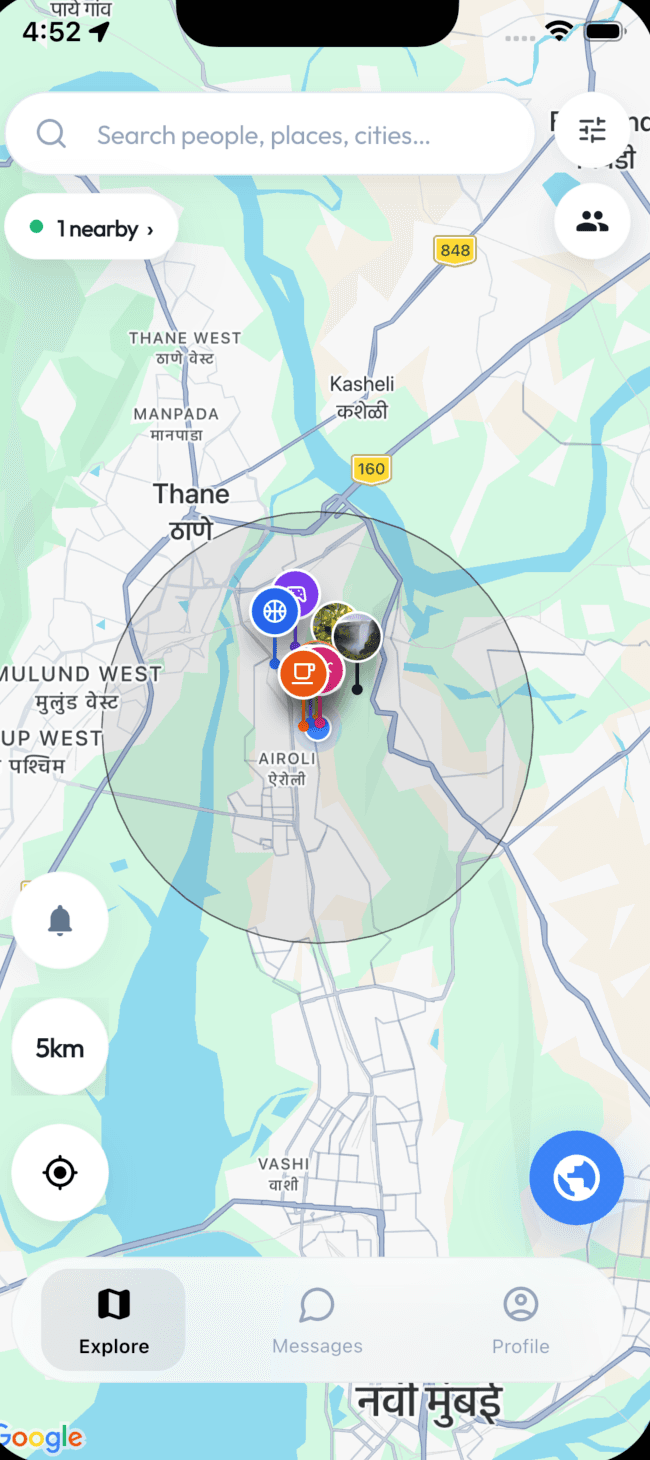
Step 1
Open Settings
From the Chatjon map screen, tap the settings icon in the upper-right corner.
You can schedule permanent account deletion from inside the Chatjon app. After you confirm, your account is restricted during a 48-hour waiting period and is then permanently deleted.
Deletion is scheduled for 48 hours after you tap Schedule Deletion. Before the 48-hour period ends, you may still be able to cancel the deletion from the app. After the period ends, deletion becomes irreversible.
Steps in the app
Follow these screens in order. The screenshots below show exactly where to tap.
Step 1
From the Chatjon map screen, tap the settings icon in the upper-right corner.
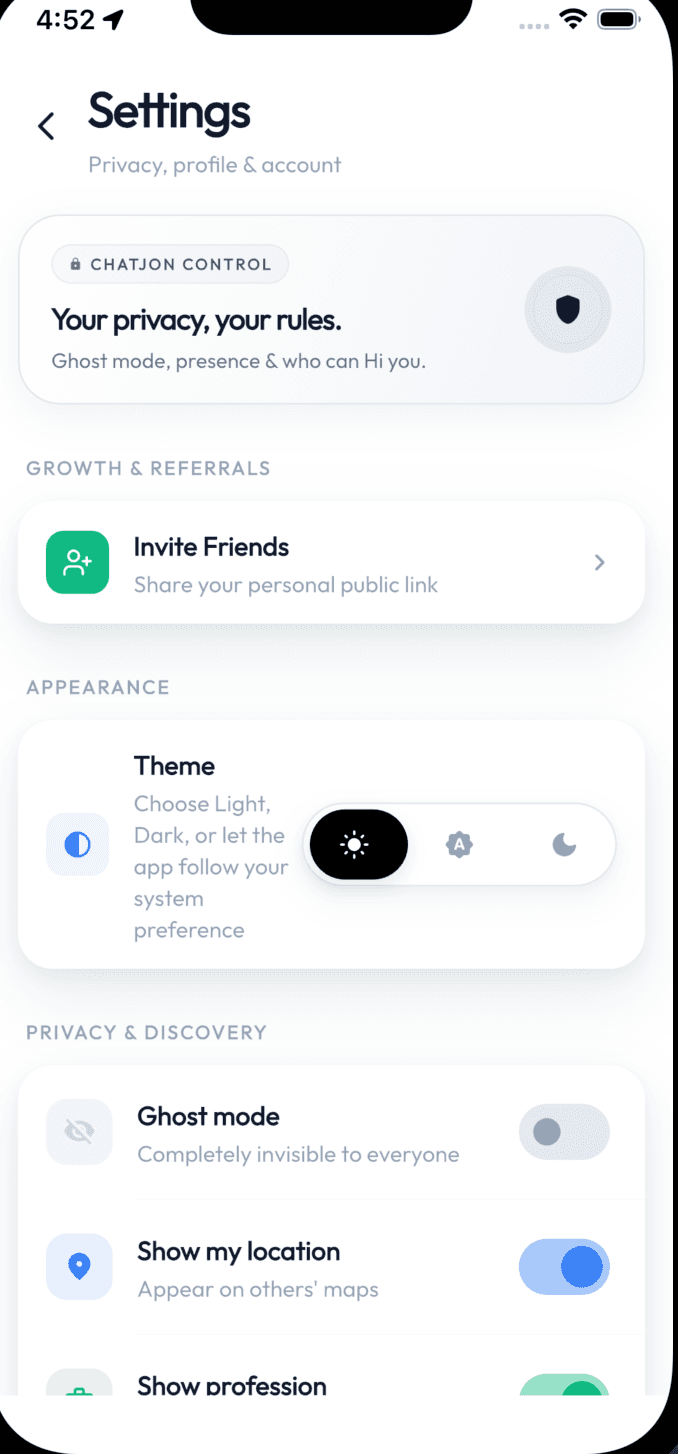
Step 2
On the Settings page, scroll down until you reach the Account section.
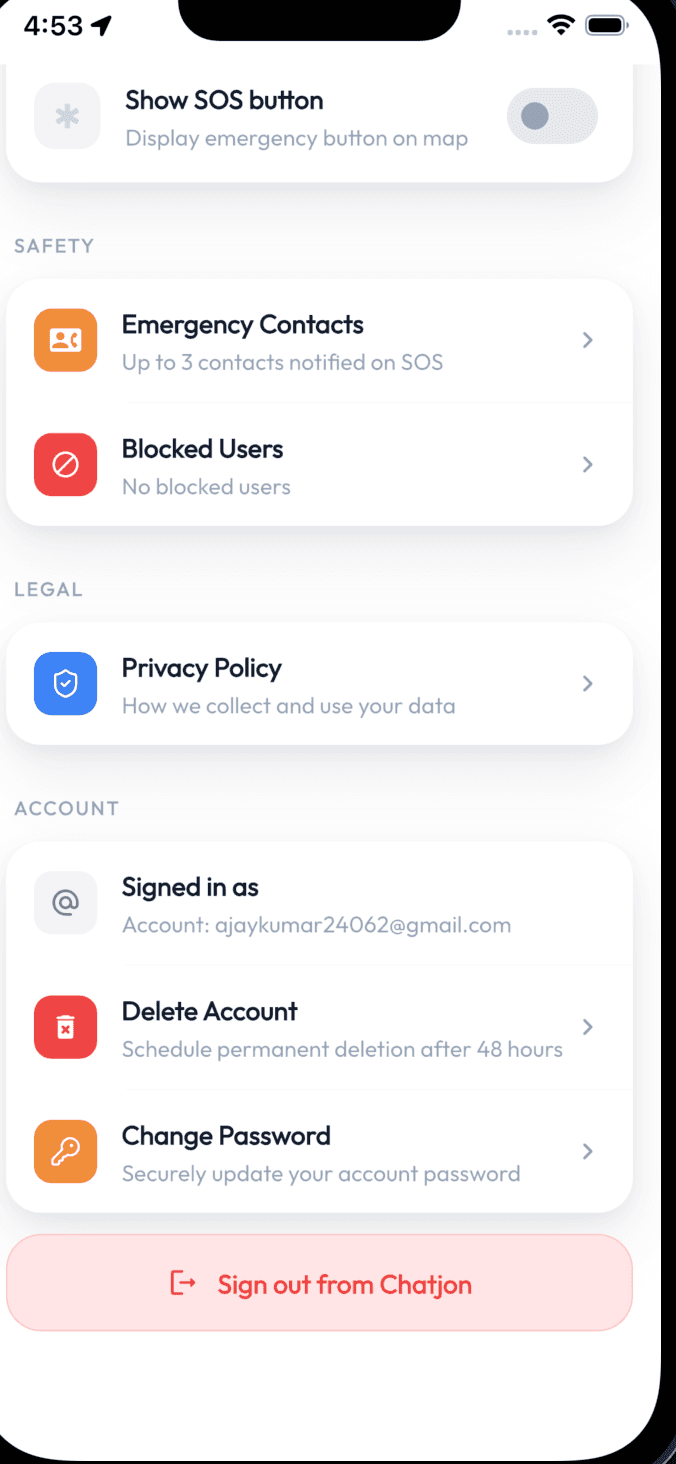
Step 3
In the Account section, tap Delete Account. It appears below Signed in as.
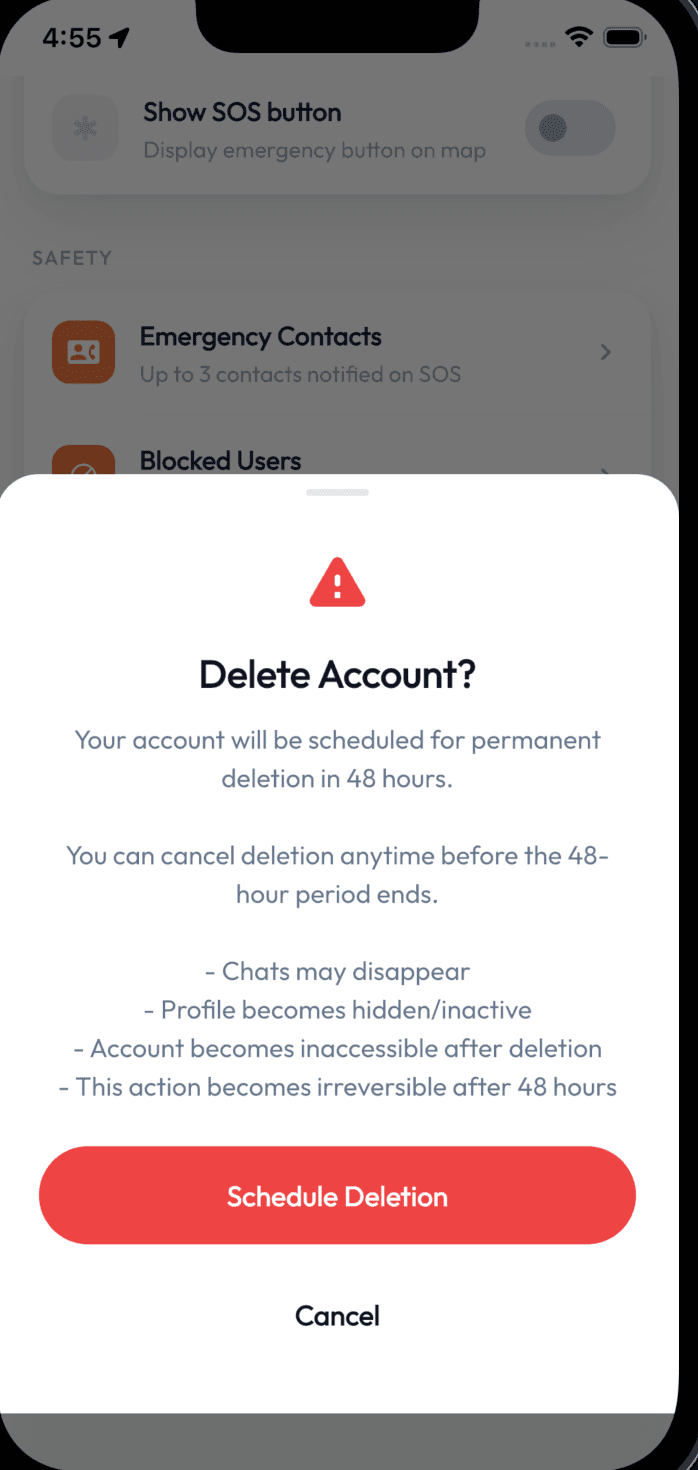
Step 4
Read the confirmation message, then tap Schedule Deletion to begin the 48-hour deletion period.
Your account is scheduled for permanent deletion in 48 hours.
Your profile may become hidden or inactive during this period.
Your account access may be restricted while deletion is pending.
After 48 hours, the action becomes irreversible.
If you cannot access the app or cannot find the Delete Account option, contact Chatjon support from the email address linked to your account.
Email chatjonsupport@gmail.com